
Blog · Sales pipeline
Next action, "My day" and your own calendar in 5sDesk
Every deal carries its next step, "My day" shows what is due today, and your own calendar blocks the time. Phone appointments even without Outlook.
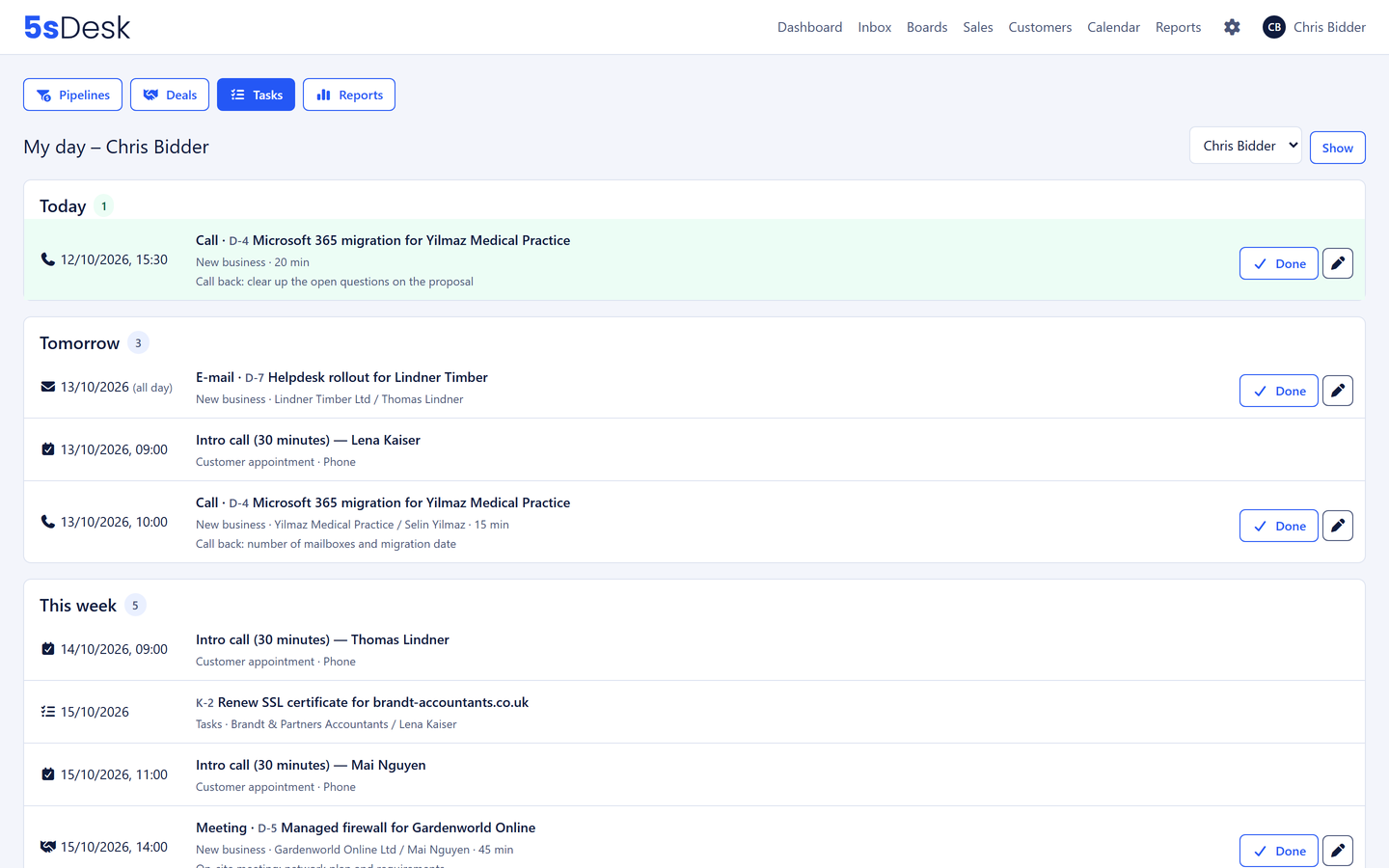
Every morning, 5sDesk tells you which customer needs your attention today and blocks the time for it in your calendar. The sales pipeline has gained three new building blocks for this: a planned next action on every deal, the “My day” list and a calendar of your own for every person. Nothing gets left behind any more, because nobody has to “check back later”.
A next action on every deal
Every deal carries its next steps as planned actions: call, meeting, email, task, “reactivate if no reply” or “follow up on the quote”. Each action has a date, optionally a time and duration, an owner, company and contact, the matching ticket from the mailbox if needed, and a note.
The earliest open step is visible everywhere: on the deal tile, in the deal list, in the customer and company record and on the dashboard. Red means overdue, green means today.
A deal without a planned next step is flagged. One click in the deal list shows all the “forgotten” deals at once.
Completing and planning ahead happen in one step: you record the outcome, for example “customer wants a quote by Friday”, and plan the next action straight away. Both land in the deal’s history. When a deal is won or lost, 5sDesk clears open actions automatically. If you plan an action for a colleague, they are notified.
The “My day” list and the Today tile
One page in the sales menu shows everything waiting for you, across all pipelines: planned actions, booked customer appointments and task cards that are due, in a single order. Grouped by “overdue”, “today”, “tomorrow”, “this week” and “later”. Items completed in the last few days stay visible.
The dashboard greets you with the same view of today, including a counter for tomorrow. Team leads see every person’s list, for example when covering for someone on holiday.
A calendar of your own in 5sDesk
Every person now has a calendar in the app: a week and day view with customer appointments, planned actions and their own entries such as a blocker, holiday or internal meeting. One click on a free slot creates an entry. Every entry is marked either “busy” or “free”.
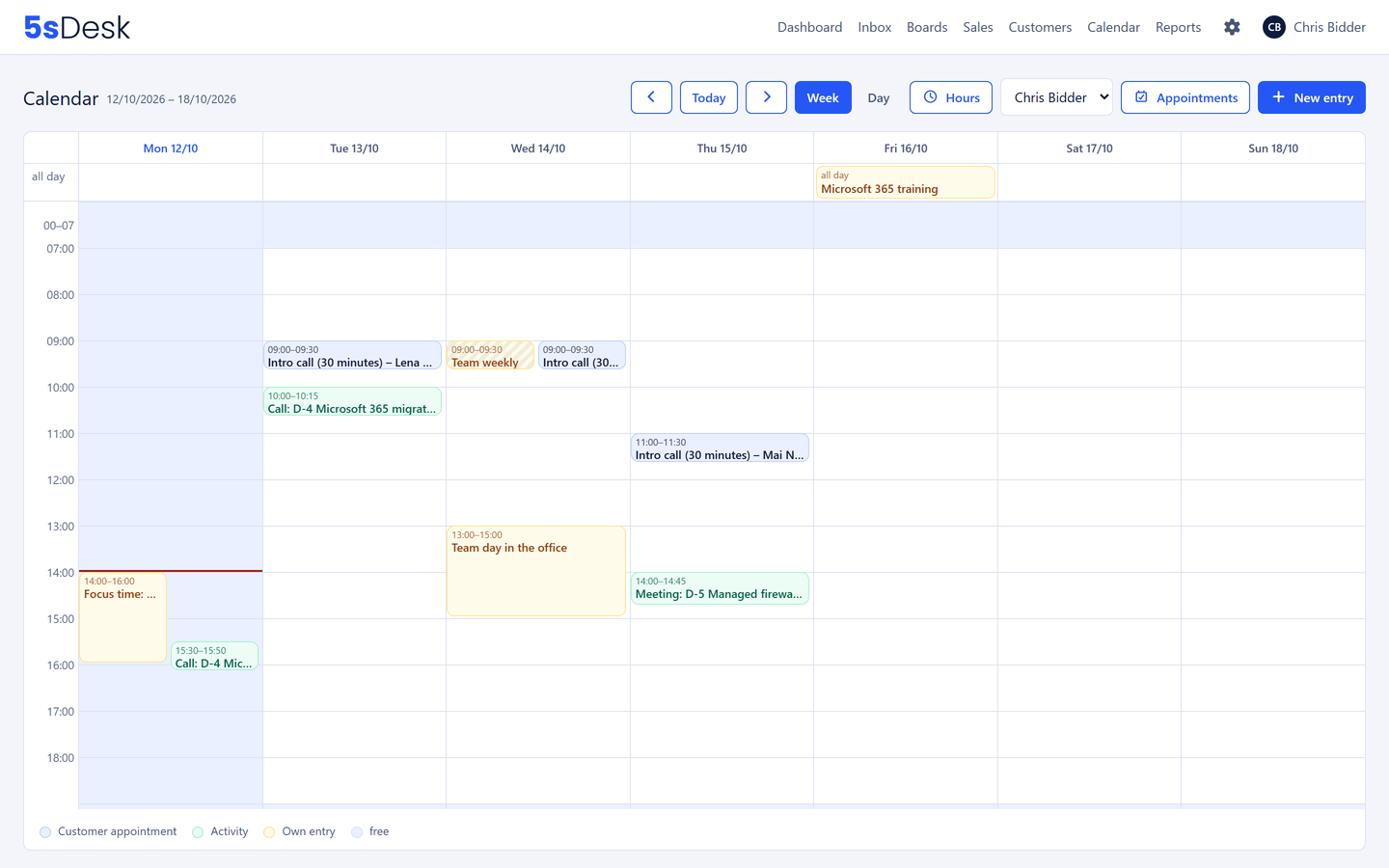
Busy entries block the time for online appointment booking, free ones leave it open. So you decide yourself when customers may book.
Outlook and Google stay optional. If you connect them, every entry and action block is copied there automatically, and busy times from the connected calendar appear in 5sDesk as a block, without title or details. Even if you connect the calendar later, the copies are sent on afterwards. The copies go in one direction, from 5sDesk into your calendar.
Appointment booking without Outlook or Google
Phone appointments can now be booked online without a connected Microsoft or Google account. Previously an external calendar was mandatory. That makes appointment booking usable for small teams, temporary staff and field staff who have no company Outlook access. Teams meetings still need Microsoft 365, and Google Meet needs a Google account.
Free slots now take every source into account: booked appointments, your own entries, planned actions and the connected calendars. In team pools, appointments are shared out fairly, including to people without an external calendar.
Actions land in your Outlook or Google calendar
An action with a time and duration appears as a block in the owner’s connected calendar, marked either “busy” or “free”. Rescheduling, a change of owner or cancellation are carried across automatically. A meeting that has already taken place stays put; a planned block in the future disappears when it is completed.
What else is new in sales
- Comments with a type and time: a call, meeting or email can be recorded as such, including retrospectively. The tile and the deal list show when something last happened.
- Sales pipeline reporting: count, total and weighted total per stage, won and lost per period, win rate and average time spent in each stage. Filter by pipeline, period and owner, export as CSV.
- Filters right on the board: the same rules and saved views as in the list now apply in the Kanban view too. Plus a quick filter by customer or company and a switch between boards in the page header.
- Lead source: every deal knows where it came from. Lead forms set the source automatically and can take a form value straight over as the deal value.
- Export and import board templates: a proven pipeline structure can be passed on as a file and loaded into other teams or organisations.
Why this matters to you
- No lead gets lost. Every deal has a next step, and any deal without one stands out straight away.
- The day starts with clarity. One list instead of searching through five pipelines.
- Fewer mandatory tools. Appointment booking and the calendar work without Outlook or Google, and seamlessly with them.
- Less duplicated work. Completing, documenting and planning ahead happen in one dialog, and the calendar looks after itself.
- Cover without a handover meeting. Team leads see every daily list and every calendar.
Every feature is available in every plan. Create your organisation and plan your first next step: Start free trial.