Skip to content

Feature · Microsoft 365 & Outlook

Your Microsoft 365 stays, 5sDesk joins it

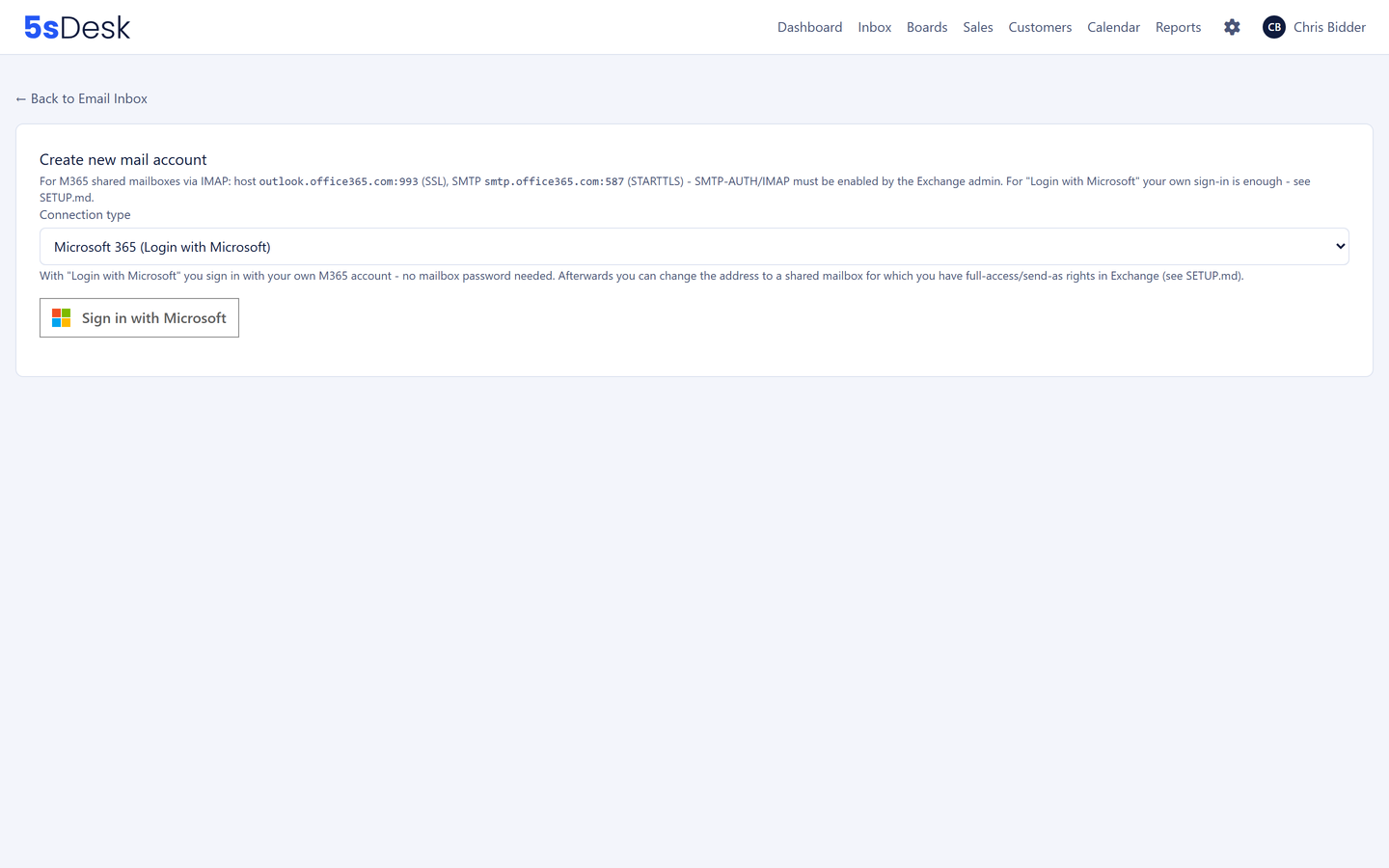
You connect mailboxes with "Sign in with Microsoft", shared mailboxes included, without storing a password. The Outlook calendar drives appointment booking, Teams supplies the meeting link and notifications to your team. Anyone still replying from Outlook stays in the history.

30-day trial · cancel free of charge during the trial · every module in every plan

Connecting a mailbox with Microsoft 365
  • Shared and personal mailboxes via OAuth, no stored passwords
  • Appointments only in genuine gaps of the Outlook calendar, with a Teams link
  • Replies sent from Outlook are matched to the ticket

In detail

Three connections to Microsoft 365

Mailboxes via "Sign in with Microsoft"

Alongside IMAP and SMTP, you connect Microsoft 365 mailboxes via OAuth, including shared mailboxes such as info@ or service@. No passwords need storing, and the credentials are held encrypted. You assign each mailbox to a department, the display name is yours to choose, and incoming email is collected continuously, from several mailboxes at once.

  • Shared mailboxes without a licence of their own in 5sDesk
  • The connection is tested before saving
  • Take over the history from a start date
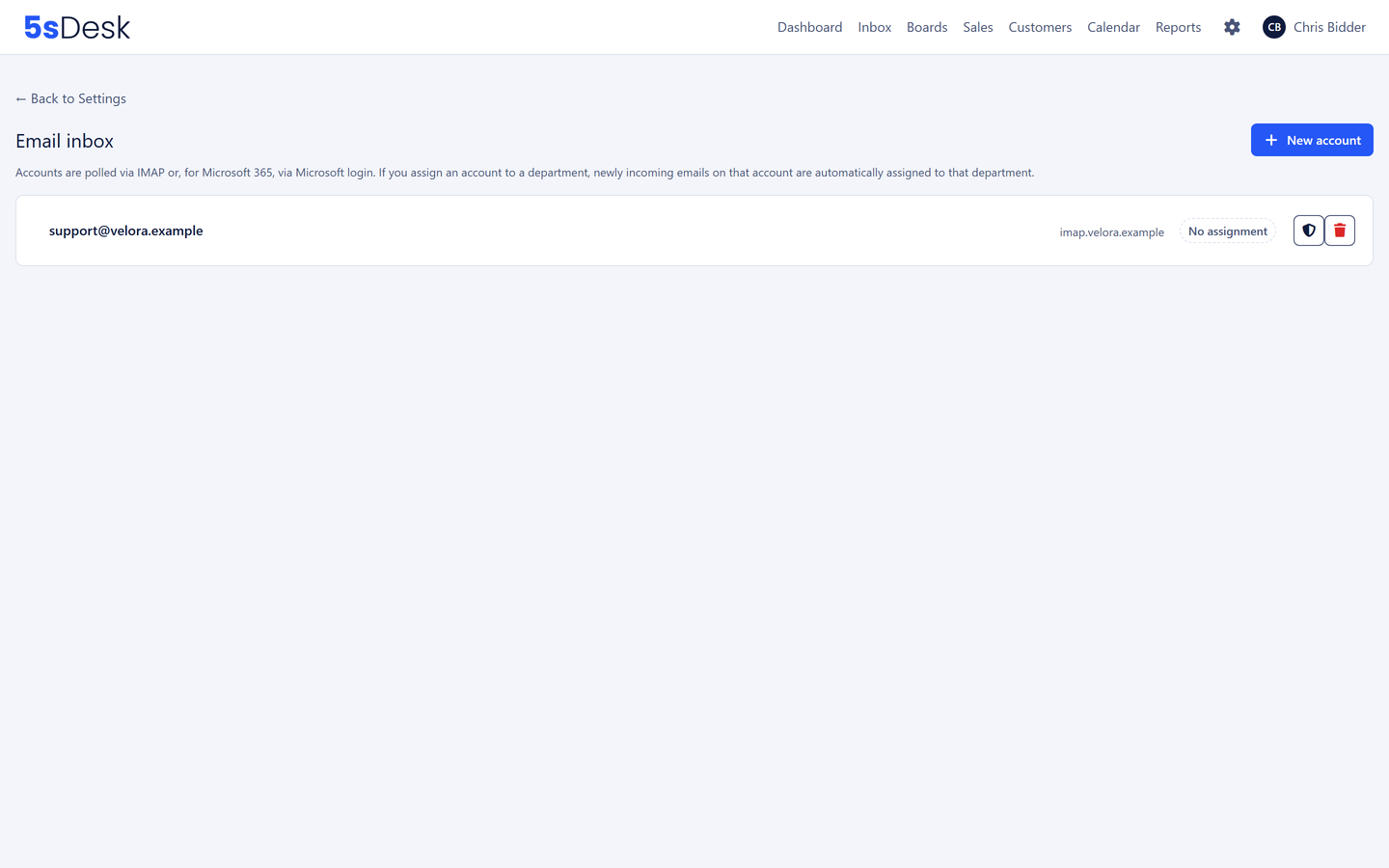
A connected mailbox in the settings

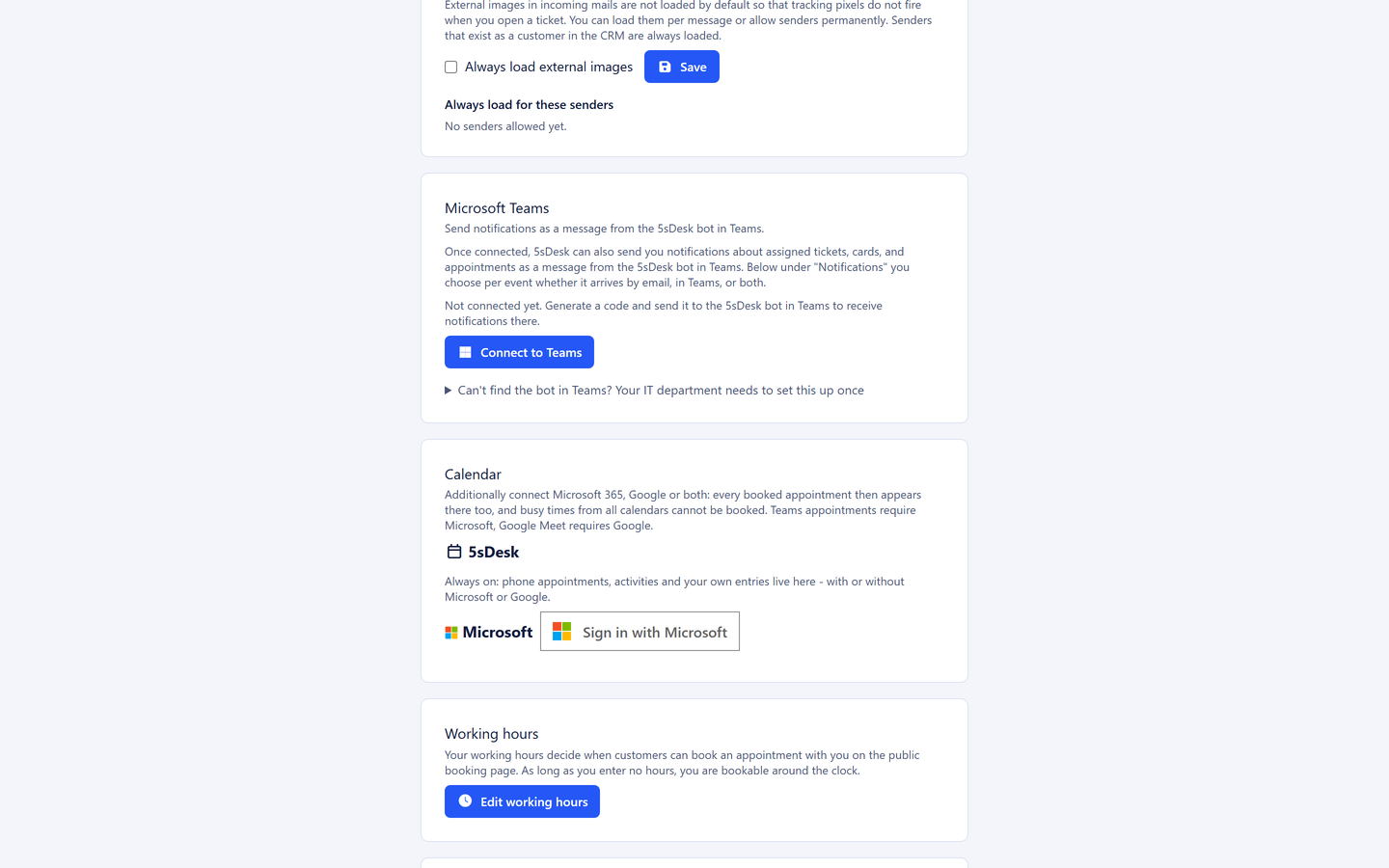
Outlook calendar and Teams for appointments

Appointment booking takes booked appointments and the connected Outlook calendar into account; an appointment that exists only in Outlook blocks the slot just the same. A booking creates the real calendar entry, and moves and cancellations are carried across. For Teams appointments the join link is created automatically. Google Calendar and Google Meet work the same way, and a person can have both.

  • Free times from the Outlook calendar
  • Teams join link in the confirmation and the calendar entry
  • A notice when a calendar connection needs renewing
More about appointment booking
Calendar connection with Microsoft 365

Teams notifications for your team

Assignment, customer reply, due date, escalation: notifications arrive by email and, if you like, as a Microsoft Teams message. Each person switches individual notifications off for themselves. Teams is a channel for your team here, not a customer channel.

  • A Teams message per event, each person can switch it off
  • Follow-up questions run as comments on the ticket, not in the chat

Anyone still replying from Outlook stays in the history

If a colleague replies directly from Outlook rather than from 5sDesk for once, the sent-folder matching recognises that reply and assigns it to the right ticket. The history stays complete, even while the team switches over bit by bit.

  • Sent-folder matching
  • A complete timeline per ticket
  • No forced cut-over date

Frequently asked questions

Do we need extra Microsoft licences for 5sDesk?
No. 5sDesk connects to the mailboxes and calendars you already have. Shared mailboxes are connected through the sign-in of a person with access to them.
What does IT need to set up?
Signing in with Microsoft runs via OAuth. An authorised person signs in once and grants access to the mailbox or calendar in question. No passwords are stored, and the connection can be removed in 5sDesk at any time.
We have Google Workspace rather than Microsoft 365. Does that work too?
You connect Google Workspace mailboxes via IMAP and SMTP. For appointment booking, Google Calendar and Google Meet are available alongside Microsoft, and a person can have both.
What does 5sDesk use Microsoft Teams for?
For notifications to your team, for example on assignment, a customer reply or a due date, and as the automatically created meeting link for booked appointments. Customer communication itself runs by email, through the customer portal, website forms and the API.

Connected to Microsoft 365 in five minutes

Sign in with Microsoft, choose a mailbox, assign a department. Try it for 30 days.

Start free trial

30-day trial · cancel free of charge during the trial · every module in every plan