
Blog · CRM
Import and export for customers and companies: move your contacts in minutes
Customers and companies now come into 5sDesk as a CSV file. The preview shows every change first, custom fields come along, and there is a way back.
The trade show is over and there is a list of 300 new contacts on your desk. Or the move to 5sDesk has been agreed, but your customers are still sitting in the old system. Until now that meant typing them in or putting it off. From today your contacts move across in a few minutes, and you see exactly what will happen before anything is saved.
Many of you asked us for an import for customers and companies. Here it is, together with an export that brings your custom fields along.
New: the “Import/Export” button
The Customers and Companies lists now have an “Import/Export” button. Behind it is one page with everything you need to get contacts in and out: the template file, the upload, the export and a list of recent imports.
Importing in four steps
1. Download the template. It already contains every column of your CRM, including the fields you created yourself, such as “Industry” or “Contract end”, plus two sample rows.
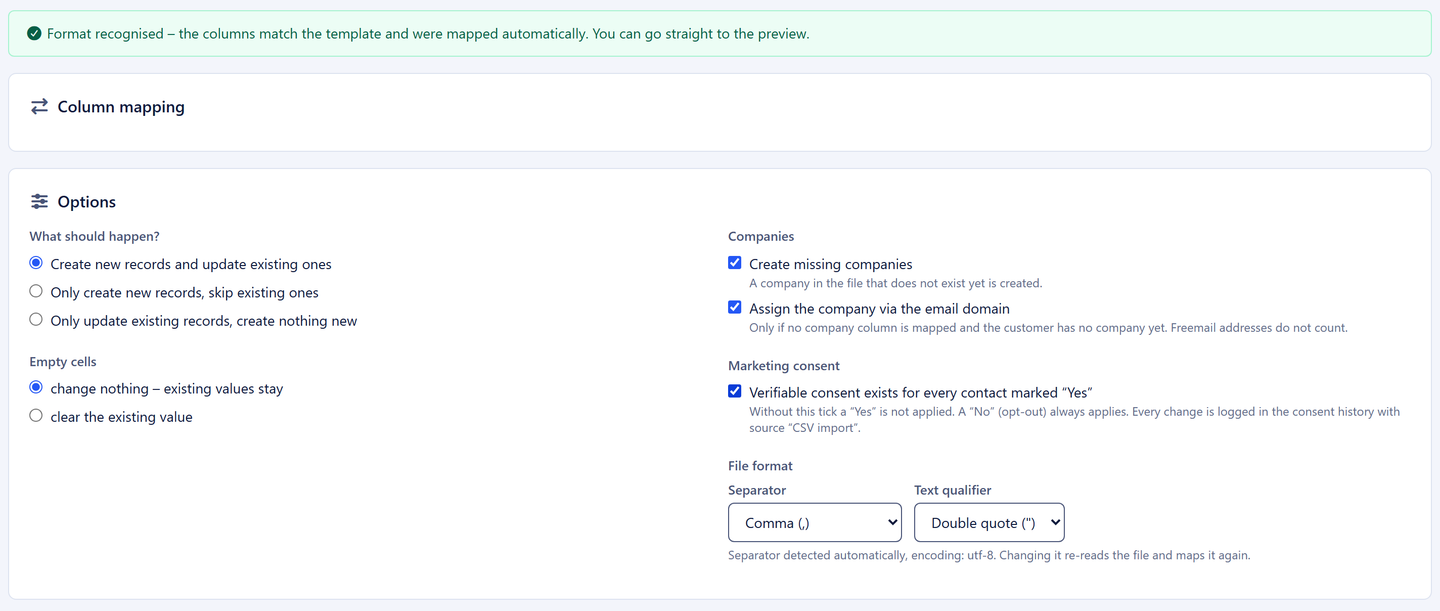
2. Fill it in or use your own list. The columns in your file have different names? No problem: 5sDesk recognises the usual column names on its own and suggests the mapping. You map the rest from a drop-down list. The next time you import the same list, 5sDesk remembers your mapping. To use an Excel list, save it in Excel with “Save As” and choose “CSV UTF-8”.
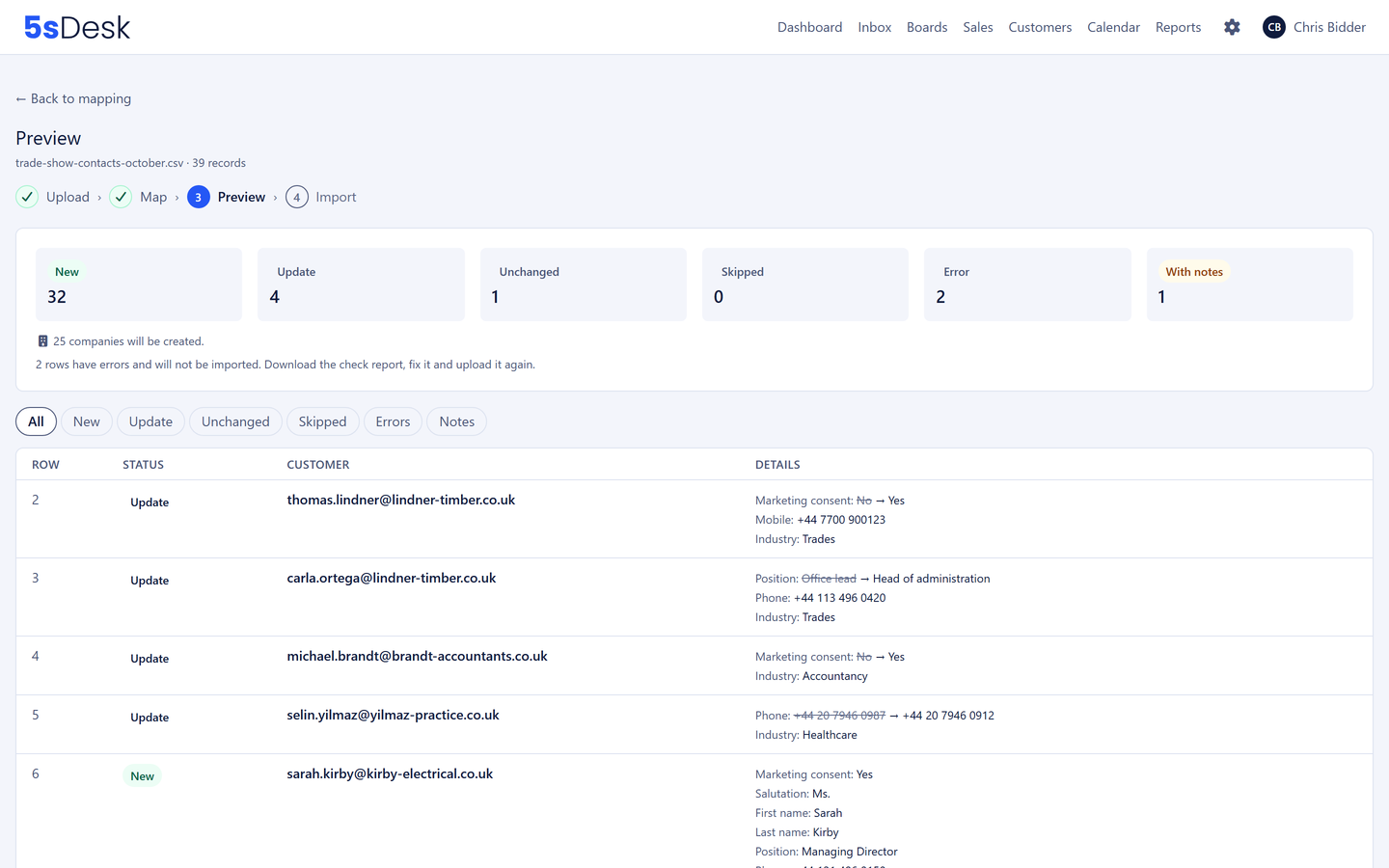
3. Check the preview. Before anything is saved, 5sDesk shows for every row what would happen: create, update with the old and new value, or leave unchanged. Rows with problems are flagged, such as an invalid email address or a duplicate entry. The tiles at the top sum it all up, including how many new companies will be added.
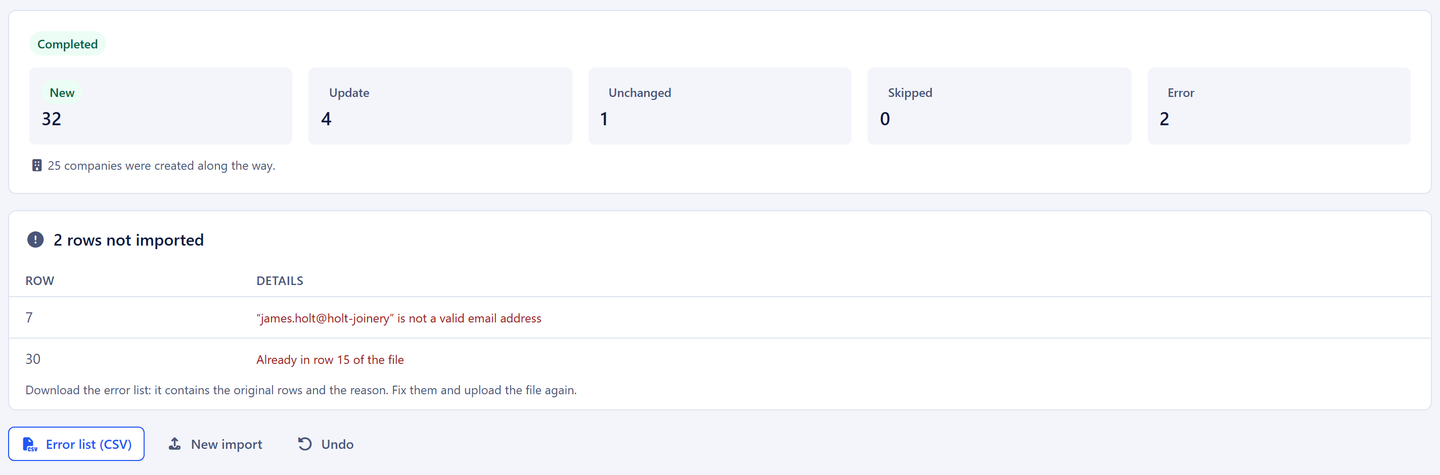
4. Start the import. The import keeps running in the background, even if you leave the page. Afterwards you see the result at a glance.
The details that make the difference
No duplicates from the import. Existing contacts are recognised and updated instead of being created twice. 5sDesk recognises customers by their email address and companies by customer number, domain or name.
Companies are linked straight away. If the list contains a company name, 5sDesk links the contact to the matching company. If you like, it creates missing companies on the spot. A trade show list turns into customer records and company records in one go.
You decide what happens. Only create new contacts, only update existing ones, or both. And whether empty cells clear existing details or leave them as they are. If you only want to add mobile numbers, there is nothing to lose.
Errors are quick to fix. Rows with errors come as a list to download, with the reason next to each one. Correct them, upload again, done.
A way back. If an import turns out to be wrong after all, one click on “Undo” removes the newly created contacts again. Contacts your team has worked with in the meantime are kept. Undo does not reset updated contacts to their previous state. That is what the preview is for: you see every change before it happens.
Exporting
Getting your contacts out again is just as easy:
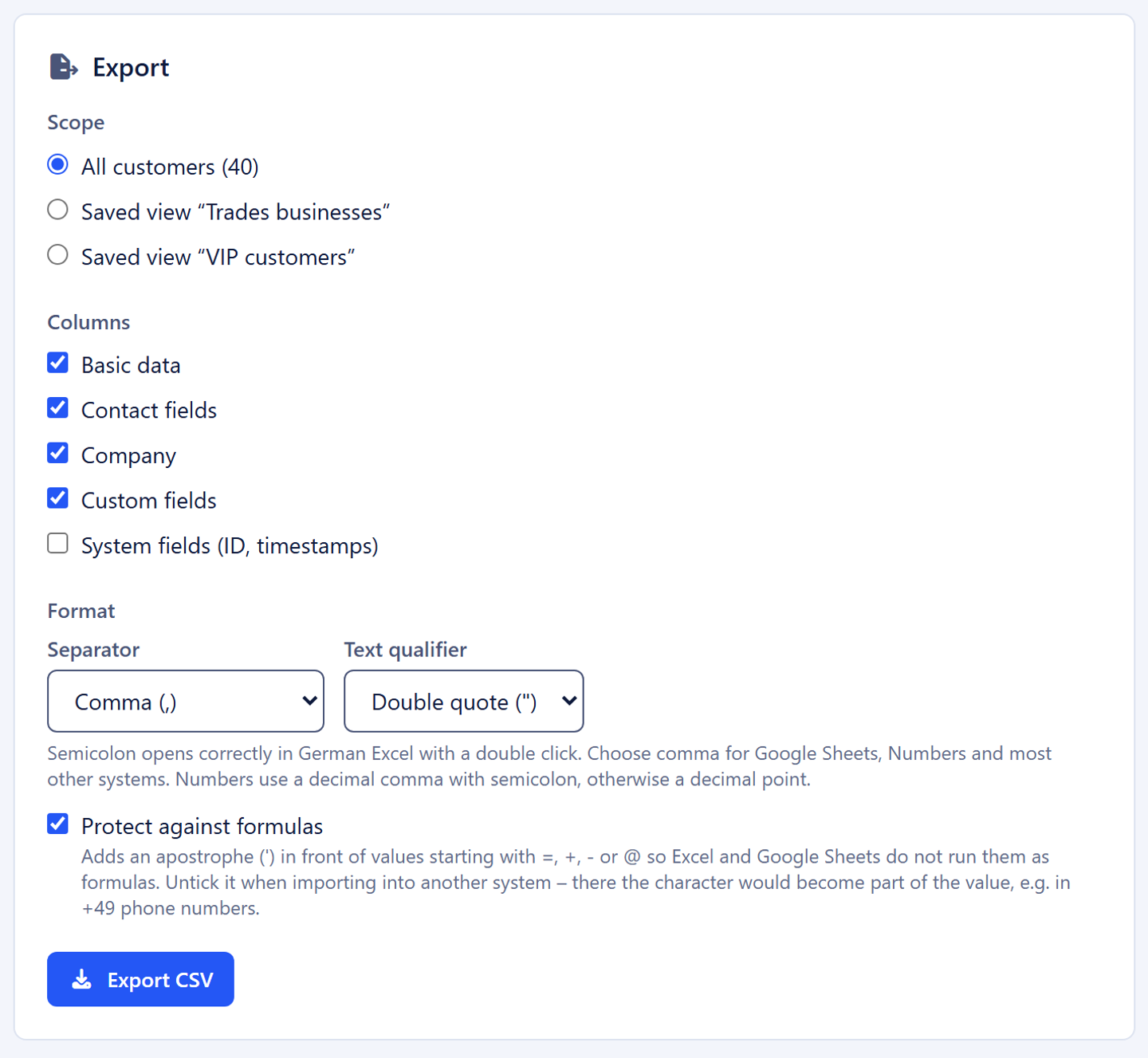
- All of them or exactly the right ones. Export all customers or companies, only the list you have just filtered, or a saved view, for example “all VIP customers in Yorkshire”.
- Your fields come along. You choose which details go into the file: basic data, contact fields, company and your custom fields.
- Suited to the destination. Pick the separator the destination expects: comma for Excel, Google Sheets and most other systems, or semicolon where a spreadsheet needs it.
- Bulk updates. Export, edit in Excel, import again. The preview then shows only the values that have actually changed.
Data protection and security
- Marketing consent is not taken over lightly. A “Yes” in the list only counts if the person responsible confirms during the import that verifiable consent exists. Opt-outs are always applied. Every change is recorded in the customer’s consent history with the source “CSV import”.
- Only authorised people can import and export: administrators and the leads of departments that work with the CRM.
- Exports are protected against injected formulas that could otherwise run when the file is opened in a spreadsheet. For files that go straight into another system, you can switch this protection off.
- The uploaded file is not kept after the import.
How 5sDesk protects your data overall is explained on the Security & GDPR page.
At a glance
| What | Value |
|---|---|
| For | Customers and companies, each with custom fields |
| File format | CSV with comma, semicolon or tab |
| Matching | Customers by email address, companies by customer number, domain or name |
| Who can use it | Administrators and department leads with CRM access |
| Where to find it | Customers or Companies → Import/Export |
The import brings in contacts with their details and custom fields, not tickets or histories. You bring in your email history when you connect your mailbox, from a start date of your choice.
Try it now
Under Customers → Import/Export you will find the template with your own custom fields. Your list is in within minutes, and the preview shows you first what will happen. Read more about what the CRM in 5sDesk can do on the feature page. No account yet? Try 5sDesk for free and bring your contacts with you on day one.